Home > Bar Code Fonts > Bar code 2/5 Interleaved > Bar code 2/5 Interleaved Utility
Bar Code 2/5 Interleaved Package, $139.50 |
 |
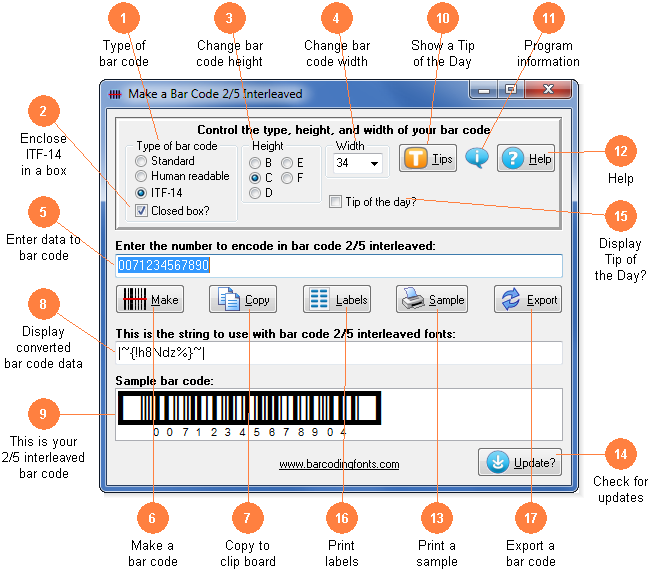
This utility and font set converts your 2/5 interleaved bar code data into an actual bar code. Use this utility to build 2/5 interleaved or ITF-14 bar codes and then to copy and paste them into other Windows programs for printing. Use this utility to build bar codes and then to copy and paste them into other Windows programs for printing. Click on any orange circle below to view a description of exactly what that control does. Bar codes can be printed on sheets of labels, copied into a desktop publishing program to display a bar code on your packaging, or exported as a gif, jpg, or bmp. These bar code fonts are compatible with virtually any Windows program. For programs like Excel and Access see the package documentation for details on using our Visual Basic macros directly inside of those programs.
 Type of bar code
Select the type of bar code 2/5 interleaved to create. Standard bar codes must have an even number of digits and just display bar code patterns. Human readable bar codes must also have an even number of digits and display bar code patterns with bar code data below. ITF-14 bar codes are 14 digits long, have bear bars, and are often placed in a black outline box.
 Enclose ITF-14 in a box
If checked the entire bar code will be enclosed in a box.
 Change bar code height
Modify the height of a bar code without changing the width.
 Change bar code width
Scale the bar code width up or down by increasing or decreasing the point size.
 Enter data to bar code
Type in the number you want to bar code here. You must have an even number of digits in your bar code. Our program will add the Start and Stop characters and translate your numbers into a bar code string.
 Make a bar code
Click this button to make a bar code from your number. You will see a sample of the bar code in the bottom window.
 Copy to clip board
Copy your completed bar code to the Windows clip board. (The Windows clip board is invisible- don't worry about where it is or how it works.) You can then paste this bar code directly into virtually any Windows program by pressing Ctrl-V or using the Edit, Paste menu in your program.
 Display converted bar code data
This is the string of characters to use with our bar code fonts. Note you can not just type in the 2/5 interleaved bar code fonts. Your bar code number is converted into a data string and this data string must be used with our bar code fonts.
 This is your 2/5 interleaved bar code
This is a sample of what your bar code will look like. Note that Windows screen resolution is fairly low, so the bar code displayed may not exactly match what will be printed.
 Show a Tip of the Day
Display the next program Tip of the Day. From this display you can page forwards or backwards through the list of all available tips.
 Program information
Display program and contact information including the version number of this software.
 Help
HelpLaunch the Windows Help application. The Help form will give you detailed answers to most questions about the program.
 Print a sample
Print a sample page of your 2/5 interleaved bar code to see just what it will look like. This sample page shows you your bar code in a number of different sizes.
 Check for updates
Check the web for a program update. You must have an active internet connection running. A web page will be displayed with information about the current version of this program and whether or not you need to update.
 Display Tip of the Day?
Display the next Tip of the Day on start up when checked.
 Print labels
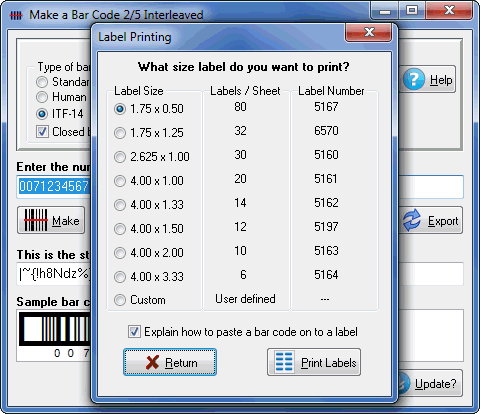
Print a sheet of labels in your word processor. Select a label template and open it with your word processor, then paste your bar code on to any label.
 Export a bar code
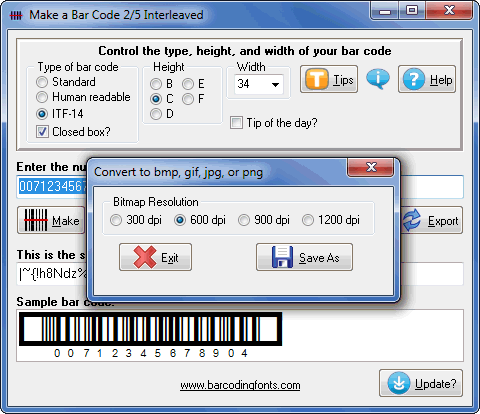
Export a copy of your bar code in bmp, gif, jpg, or png formats. You can choose from four different resolutions. You can email this bar code or use it in your packaging.